Creality Falcon A1 vs Falcon A1 Pro: Is the 20 W Upgrade Worth It?
Our top picks
 Best for engraving on a budget: bigger bed, Class 1, camera, about $549Creality Falcon A1 10W10 W diode · Enclosed · 381 × 305 mm7.9Price tier: Mid-rangeCheck price on Amazon
 Best for cutting and convenience: 20 W, autofocus, Wi-Fi, touchscreen, about $1,099Creality Falcon A1 Pro 20W20 W diode · Enclosed · 358 × 268 mm8.2Price tier: Mid-rangeCheck price
 Smaller and cheaper: Class 1 with autofocus for coasters and tags, about $379–399Creality Falcon A1C 10W (AI Camera)10 W diode · Enclosed · 150 × 150 mm7.8Price tier: BudgetCheck price
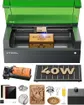 Step up for thick cuts in a Class 1 box: 40 W, about $1,819xTool S1 40W Enclosed Diode Laser40 W diode · Enclosed · 498 × 319 mm8.5Price tier: PremiumCheck price
Creality’s Falcon A1 and Falcon A1 Pro share a body style, a Class 1 rating and a placement camera, but the Pro costs about twice as much. The question is whether doubling the laser power and adding autofocus, Wi-Fi and a touchscreen is worth about $550 more, especially as the cheaper A1 has the larger bed. Short answer: for engraving, no; for cutting and hands-off convenience, yes. Prices are the lowest we saw on Amazon on October 29, 2026; check today’s price before you buy.
First, the wattage. Amazon titles call these the “80W” and “180W” Falcons. Those are electrical figures. The listings themselves state 10,000 mW and 20,000 mW of optical output, so this is a 10 W vs 20 W comparison. Our wattage explainer explains why the titles do this.
The specs, side by side
| Falcon A1 | Falcon A1 Pro | |
|---|---|---|
| Price (Amazon) | About $549 | About $1,099 (rotary bundle about $1,012) |
| Laser (output) | 10 W blue diode | 20 W blue diode; optional 2 W 1064 nm IR |
| Work area | 381 × 305 mm | 358 × 268 mm |
| Max speed | 600 mm/s | 600 mm/s |
| Laser class | Class 1 | Class 1 |
| Air assist | Included | Built in |
| Camera | Yes | Yes |
| Focus | Manual, stepped focus block | AI autofocus (about 3 seconds) |
| Connectivity | USB only | USB, Wi-Fi, app; 4.3-in touchscreen |
| Wood cutting (maker claim) | 6 mm, single pass | 10 mm basswood, passes not stated |
| Metal | Coated metal only | Marks bare metal (better with IR head) |
| Software | Falcon Design Space, LightBurn, LaserGRBL | Falcon Design Space, LightBurn, LaserGRBL |
| Weight | 34.3 lb | 37 lb |
| Warranty | 1 year | 1 year |
| Our score | 7.9 | 8.2 |
Where the Falcon A1 wins
Price. At about $549, the A1 costs half as much as the Pro for the same Class 1 enclosure, camera and software options. That leaves room in the budget for ventilation and materials. Creality also sells it bundled with its Rotary Roller Pro for about $559 or with a desktop smoke purifier for about $603 on Amazon. Either is a better use of $550 than the power upgrade if you mostly engrave.
Bed size. The A1’s 381 × 305 mm bed is larger than the Pro’s 358 × 268 mm. It just fits a 12 × 12 in sheet, which the Pro’s 268 mm depth can’t. That’s useful for signs, cutting boards and batches of coasters.
Engraving quality per dollar. 10 W is plenty for engraving wood, leather, slate, anodized aluminum and powder-coated tumblers, and both machines are rated to the same 600 mm/s. Creative Bloq’s reviewer spent a month with it and called it an ideal laser for beginners on a budget.
The costs show up in daily use. The A1 is USB-only, so a laptop has to stay plugged in for every job, and Creative Bloq wished it could run any other way. Focus is manual: you set it with the included stepped block each time you change material. And cutting tops out around 6 mm of wood in a pass, per Creality. Creality’s own listings disagree on whether it cuts black acrylic at all, so don’t buy it for that.
Where the Falcon A1 Pro wins
Cutting power. Twice the optical power cuts thicker stock in fewer passes. Creality claims 10 mm basswood and 8 mm black acrylic “with fewer passes” without saying how many. Gadget Review cut 9 mm cedar in a single pass in its testing. If you make layered signs, boxes or ornaments from 6 mm plywood, the Pro will finish jobs that take the A1 several slow passes.
No laptop, no focus block. The Pro has a 4.3-inch touchscreen, Wi-Fi and app control, so you can send a job and walk away from the computer (though never from the laser). AI autofocus sets height in about three seconds. Over hundreds of jobs, that saves real time and removes a common beginner mistake.
A path to bare metal. A tool-free swap to the optional 2 W 1064 nm IR head lets the Pro mark bare stainless, brass, aluminum and some plastics properly. Amazon’s IR bundle was about $1,151 on October 29, 2026. Without it, the 20 W blue diode leaves only a slow, low-contrast mark on bare stainless. The IR beam is invisible and blue-diode glasses don’t stop it, so keep the lid closed and use 1064 nm goggles if you ever work with it open.
The Pro’s software and connectivity have rough edges. Gadget Review notes user reports of spotty Wi-Fi and buggy Falcon Design Space, though its own reviewer had no Wi-Fi problems. Creality acknowledges reports that the A1 Pro can’t be manually focused in LightBurn and suggests jogging the Z axis as a workaround while it works on a fix.
What they share
Both are Class 1 enclosures with safety stops (the Pro adds flame and tilt detection), so nobody in the room needs goggles with the doors shut. Both have air assist, a camera for drag-and-drop placement and LightBurn support, which the xTool M2 and Glowforge Aura lack. Both use a blue diode, so neither cuts clear acrylic or engraves bare glass (see what materials a laser can cut). Both still need ventilation: run the exhaust hose out a window or use a purifier. Our ventilation guide explains the options.
The same accessories fit both: the Creality Rotary Roller Pro for tumblers and glasses, and the A1-sized Creality honeycomb bed. Creality’s 500 × 500 mm honeycomb doesn’t fit.
What a working setup costs
The machine price isn’t the whole bill. Here’s roughly what each looks like with the add-ons most owners end up buying, at the Amazon prices we saw on October 29, 2026:
| Falcon A1 | Falcon A1 Pro | |
|---|---|---|
| Machine | About $549 | About $1,099 (or about $1,012 with rotary) |
| Rotary for tumblers | About $559 bundle, or about $114 separately | Included in the about $1,012 bundle |
| Bare-metal marking | Not available | About $1,151 bundle with 2 W IR head |
| Honeycomb bed | About $69 | About $69 |
| Venting (duct fan + 25 ft duct) | About $90 + $19 | About $90 + $19 |
So a rotary-equipped A1 with a honeycomb bed and a proper duct run lands around $740, against about $1,190 for the same setup on the Pro. That roughly $450 gap is the real price of the upgrade. You can skip the duct fan if a window is close, and the A1’s purifier bundle (about $603) is the alternative for rooms you can’t vent.
Who should buy which
Buy the Falcon A1 if you mainly engrave gifts, signs, coasters and tumblers, you don’t mind a USB cable and a focus block, and you’d rather spend the savings on a rotary, a purifier or materials. It’s the better value.
Buy the Falcon A1 Pro if cutting is a big part of what you make, you want to run jobs from a touchscreen or phone, or you plan to add the IR head for bare-metal tags and jewelry. Check the rotary bundle, which was cheaper than the bare machine on Amazon on October 29, 2026. Creality’s own store had the A1 Pro on sale for $879 that day, so compare before you buy.
Consider something else if space is tight and you only make small items: the Falcon A1C is Class 1 with autofocus for about $379–399, but its bed is only 150 × 150 mm. If you want to cut 15 mm-plus stock inside a Class 1 box, the xTool S1 40W is the step up. If the easiest possible first laser matters more than LightBurn, compare the xTool M2 at about $499.
Verdict
For most first-time buyers who engrave far more than they cut, the Falcon A1 is the smarter purchase: the same Class 1 safety, camera and LightBurn support, a bigger bed and about $550 left over. The Falcon A1 Pro earns its price if you cut regularly, want autofocus and wireless control, or want an easy route to bare-metal marking, which is why we name it our best-value enclosed laser. See where both rank in the best enclosed laser engravers, or run your projects through the laser matcher.
Frequently asked questions
What's the difference between the Falcon A1 and A1 Pro?
Is the Falcon A1 Pro really 180W?
Can the Falcon A1 or A1 Pro cut clear acrylic?
Do I need the IR module on the A1 Pro?
Sources
- Creality: Falcon A1 vs. A1 Pro, key differences explained · checked 2026-10-30 — Spec tables for both models (10 W, 381 × 305 mm, USB only vs 20 W + optional 2 W IR, 358 × 268 mm, touchscreen, Wi-Fi, AI autofocus); notes reports that the A1 Pro can't be manually focused in LightBurn.
- Creative Bloq: Creality Falcon A1 review · checked 2026-10-30 — Called the A1 an ideal laser for beginners on a budget; focus with the included stepped block for each material; wished it could run without a wired computer.
- Gadget Review: Creality Falcon A1 Pro · checked 2026-10-30 — Cut 9 mm cedar in a single pass; users report spotty Wi-Fi and buggy Falcon Design Space, though the reviewer had no Wi-Fi problems.
Get new guides by e-mail
One short e-mail when Laser Engravers Guide publishes a new guide. No spam, no sharing your address, and you can unsubscribe in one click.